Tuesday, April 26, 2011

Tripline map tours

Tripline.net is web2.0 tool that allows you to use Google Maps, routes, points of interest, text, & pictures, then turns all those things into a nice guided tour video. It is very similar to My Maps (built in to Google Maps) but the video-like interface keeps the audience on the track the author has specified.

It's a free web 2.0 tool that has a lot of uses in the classroom.

Check out this example on Columbus' first voyage.
(If the video doesn't launch, try here.)


There is a really nice intro/how to video on the HP Teacher Experience Exchange. Thanks to @txmelissatx for this gem.

Friday, April 22, 2011

Wikipedia project...

Have your students create a wikipedia page in ppt. I have attached the full Wikipedia template for PowerPoint so you to get started right away.

Objectives:
  • Students recreate a wikipedia article about themselves, another classmate, or any person/place/thing
  • Students use hyperlinks to make the pages function like real webpages.
  • Students create a references page
I created this template in PPT 2007. You can download the file here. In the speaker notes you will find some extra tips and explanations for using this template.


Enjoy! & If you have any other ideas for student uses of this template, please share.

Email Template Project...

I heard about a website the other day that created fictional emails generated by fictional characters. What an interesting idea... Creating emails as if you were another person place or thing. As a spin off of that idea I created an Outlook ppt template. This template will enable you to re-create an outlook inbox as well as outgoing/incoming messages as if it were some else's inbox.

An activity such as this allows students to use a tool they are familiar with while at the same time thinking from a new angle. Students could do this for historical characters, fictional characters, or perhaps even an object like an igneous rock.


This is also a spinoff from the Facebook ppt Template. Be sure to check that idea as well.


Tuesday, April 19, 2011

The New Media & Education...


Just as the printing press changed the world by placing books & information in more hands, I believe that today's new media is revolutionizing the world. Do we, as teachers, understand the significance of "New Media" and how it is changing the lives of our students?

The printing press made it possible to mass produce/re-produce text so that more people could obtain information than was ever possible before. However, a select few controlled those presses. Even with development of radio and television, wealthy individuals and corporations served as the gate-keepers to those channels. Still today, the cost to publish a book or to communicate via radio or TV, is astronomical.

With the "New Media" of today, however, the paradigms of publishing and broadcasting are changing. For example, Radio and Television shows can be made with consumer grade audio & video hardware. They can then be edited with almost any computer running fairly inexpensive software. Then distributed via the internet for little to almost no cost at all! Books are just as easy. With a good idea, anyone can write a book, format it digitally for any/all eReader devices and distribute that book in any eBook store like Amazon, or iBooks. A great example of the power of "New Media" is the story of Greyson Chance. Greyson, at the age of 12 performed a cover of Lady Gaga's hit "Paparazzi." The video was posted to YouTube and as of today has nearly 39 million hits. It was viewed by Ellen DeGeneres, he was invited on her show and signed to a record deal with her record label.

So what does this new media mean for today's students? It means that ideas are no longer controlled by traditional media outlets. Any good idea, talent, or work can be shared, published and distributed by anyone, at anytime; with little, to no cost...especially when compared to traditional means. By teaching technology along with our subjects we are teaching our students skills that can open doors of opportunity beyond the imagination of prior generations. Today, we have not only information, but tools, and medium that can bring the world and it's opportunities at our fingertips. We need teachers that understand this concept, teach it, and thus empower today's students.

New media is not limited to radio, TV & Books. There is a gold rush happening in the world of mobile apps today. The software required to develop these apps is available for free. There are classes being offered in secondary schools, colleges, and even summer camps, on how to develop your own mobile app.

Today's media brings many challenges to education. However, new media is not to be feared, but rather taught, studied, understood, and leveraged to show our students that they, truly, can do anything they put their minds to.

Monday, April 11, 2011

Museum box

Two weeks ago I posted my 4 favorite web 2.0 tools that use photos. Today, @HistoryandTechintroduced me to #5...Museumbox.

Museumbox is allows you to upload pictures, text, vide, & audio. Each element is added to a cube that spins to display the different media. One of the best examples I found is on Hellen Keller. Take a minute to browse through some examples and see if you can use this tool with your students.


Thursday, April 7, 2011

Historical Event News Broadcast Project...

Tired of having students do the same old reports or PowerPoints? This lesson still requires the same research, but ignites engagement, higher order thinking skills, as well as technology skills.

Objectives:
  • Students research an event
  • Students compile research in order to write a television/radio broadcast
  • Students create a storyboard or somekind of paper draft of their show
  • Students create a broadcast (radio/TV) as if they had gone back in time
  • Students add credits to the end of their broadcast to site their sources
Tech options:
  • iPods - Built-in camera, iMovie
  • iPads - Built-in camera, iMovie, Garageband
  • Any voice recorder will do
  • Pocket Camcorder
  • PC - Audacity, Aviary.com, MovieMaker, Photostory
  • Mac - Garageband, iMovie
Adaptations:
  • Students could create the show from different points of view (ex. Civil War - North/South)
  • Have students use era appropriate music or pictures
  • Have students place themselves in the time of the event. (ex. WWII most media was only radio, there was no video and pictures were rare.)
  • Students could re-create propaganda from the era
  • Audio/video could be shared on the web (blog, youtube, shooltube, teachertube, etc.)
  • Allow students to choose the tool they use.
  • Have students research using the tools of the era (books, newspapers, encyclopedias, etc...)

Do you have other ideas that could make this lesson better? Please share them.

Monday, April 4, 2011

Tips & Tricks 4 Managing Multiple IOS devices...(part 3)

Part 3: Wi-fi setup, restrictions, & Web Clips using the ICU

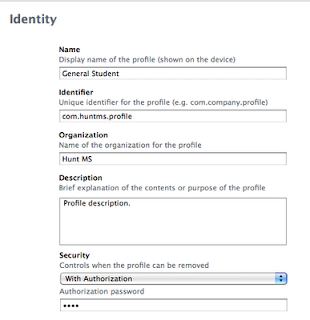
Have you ever had to type in your wi-fi key by hand on more than 3 IOS devices? It is rediculous, especially with iPod touch devices! Fortunately, Apple released the Iphone Configuration Utility (ICU). The ICU allows you to create confuguration profiles that can be installed on each device. A configuration profile can install wifi, restrictions, & web clips; but it cannot sync your devices. When the profile installs on the device, the iPod or iPad will require 2 clicks, one to install and one to accept. But that beats typing in long passwords, codes, & URLs.

The ICU is a free download for Mac/PC @ http://www.apple.com/support/iphone/enterprise/

Creating a Configuration Profile - One important thing to note: It is not a good idea to put all of your settings in one profile. For example, if you have restrictions and wifi settings in one profile, but you need to remove the restriction in order to perform a task, then you will also disble the wifi. I typically add 3 profiles, one for wifi, one for restrictions, & one for webclips.


> Click on "Configuration Profiles"
>Click "New"

General Tab: Fill in these options:
  • Name
  • Indentifier (I follow apple's recomendation: ex, com.school.profilename)
  • Security (I choose "With Authorization" and fill in a authorization passcode below. This will enable you to remove this profile manually should it get in the way)

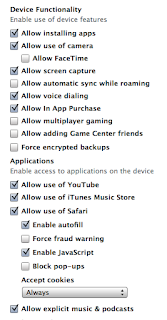
Restrictions Tab: You can play with some of these settings. Below are a few of the lessons I've
learned
  • Allow installing apps - If this box is unchecked no more apps can be added to this device, not even when wired to iTunes. I learned my lesson and now leave this checked
  • Allow use of Camera - This is important for the 4th gen iPod touch. (I create one profile just for this setting. I have some teachers that request that it be turned off.)
  • Allow in App Purchase - I turn this off.
  • Allow use of iTunes music store - I turn this off
  • Allow explicit music & podcasts - I turn this off
  • Allowed content ratings - I leave these set to "allow all"


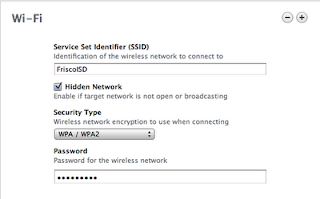
Wifi tab: I create 1 configuration profile just for wifi. This way, if I need to change settings or turn off a restriction, I don't erase the wifi settings at the same time. Multiple wifi networks can be added by clicking the "+" at the top right.
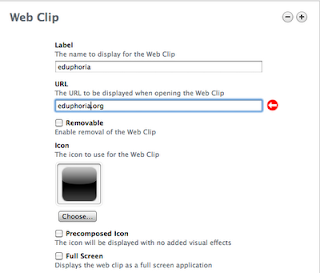
Web clips: Web clips are shortcuts to web addresses that appear on the home screens as icons that look like apps. When clicked on they launch safari and take you straight to the address. You can add as many web clips as you want in one profile.


One last note: If you change a profile after it has been installed onto a device, it will become corrupt. If you need to make changes to a profile after you have installed it. It is better to uninstall the existing profile, create a new profile, then install the new one.


Tips & Tricks 4 Managing Multiple IOS devices...(part 2)

Part 2: Naming & Sync setup

The setup and naming of IOS devices is the slowest & most time consuming part of managing multiple IOS devices. If it is done right, however, it will save hours upon hours in the future.

Setup the Computer -
  1. Create a few playlists in iTunes (We will setup these playlists to auto sync)
  2. Create a wallpaper photo with numbers that match the numbers of your devices.
  3. Create a few 'Events' in iPhoto. At least 1 for the wallpaper photos & one for lessons (We will setup these events to auto sync)
  4. Turn on 'Books' in iTunes. (>iTunes; >Preferences; >check "Books")

Initialize & Name each device:
  1. Connect devices to your "Parent Device" (iTunes should launch, if not do so manually)
  2. Go through the initial setup screens in iTunes.
  3. Create a naming system for your devices and name them accordingly.
  4. Uncheck all boxes for Auto sync (We'll setup the way we want iTunes to sync in a moment)

Setup how to sync each device: With all devices plugged in & names, you should each device in the left-hand sidebar of iTunes. The steps below need to be repeated on each IOS device.
  1. Select the first device in the left-hand sidebar. (The main screen will now be for managing that device)
  2. Choose "Apps"
  3. Check the boxes for each app you would like to sync.
  4. Check the "Automatically sync new apps" box (it is under the box listing all current apps)
  5. Choose "Music"
  6. Check the box next to "Sync Music"
  7. Check the radio button next to "Selected playlists, artists..."
  8. Check the boxes next to each playlist that you would like to auto sync (From now on you can change the music in the playlist on the computer and the changes will auto sync the next time you connect the device to iTunes.)
  9. Choose "Books"
  10. Check the box next to "Sync Books". (Any PDF can be added to your books library and it will auto sync)
  11. Chooose "Photos"
  12. Check the box next to "Sync Photos"
  13. Check the box next to "Selected Albums, events..."
  14. Check the box next to "Include videos"
  15. Check the box next to each events that you created previously in iPhoto. (Any photo changed in these events will auto sync to each device.)
Then repeat the steps above for each device in your lab.


Stay tuned for how to setup wifi & webclips(url shortcuts) easily


Tips & Tricks 4 Managing Multiple IOS devices...(part 1)

Part 1: Hardware

Did you know that iTunes can sync up to 20 IOS devices at one time? You just have to make sure that you've got the right hardware. You have some options when it comes to hardware for syncing your devices. Here are two examples that I have used that have worked nicely for me.

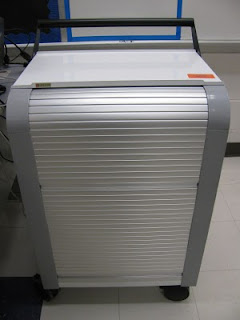
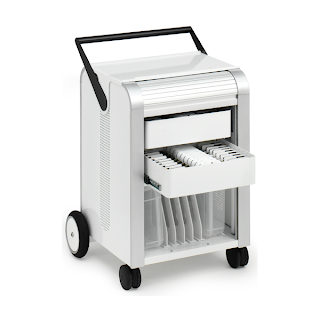
The Bretford syncing cart - @ $2,000 or so, this is an expensive, but very convenient option. The cart holds 2 trays of 20 iPod touch devices each. There is one USB for each tray so syncing is somewhat easy. They also make a cart that charges iPads as well.


The powered USB hub - This Tripp-Lite 10 port powered USB hub runs about $40.
This will charge and sync up to 10 devices at once. The hub must be plugged into power as well as connected to the computer in order to charge the devices. It does have one drawback. The hub needs to be plugged into the computer and then connect the devices one by one to the hub. If the devices are all plugged into the hub before it is connected to the computer, occasionally an error will come up stating that "charging is not
supported on this device."

(I have not yet tried connecting two of these to the macbook at the same time to sync up to 20 at once.)


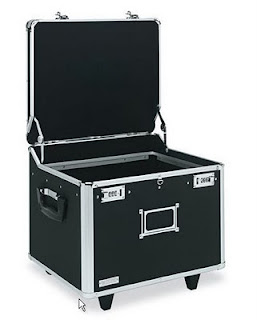
Since the powered USB hub doesn't come with a cart, you will want to have a way to store/carry all your devices at once. We purchased this Vaultz cart below. Office depot sells them for $69.99. A foam insert can be purchased and cut to protect the devices while in transport.

A Parent Device: Whether you have iPods or iPads, these devices need to have a "Parent Device." A parent device is a PC or Mac that has iTunes installed. On my campuses we have a macbook dedicated for this job. A PC could be used, but I have had less problems managing these devices with a mac.


Do you have a system that works for you? Please let me know.

Stay tuned for info on setting up and syncing these devices using the hardware above.

Friday, April 1, 2011

4 web 2.0 tools with Photos

Below are my 4 favorite web 2.0 tools that use photos. Each of these could be used for projects.
They are listed from easy to more difficult.


* Fotobabble.com - Upload any picture and then record sound with that picture.
  • Teaching mood
  • Poetry readings


* Blabberize.com - allows you to upload a picture, put a mouth on that picture, then record sound...
  • Historical figures
  • Historical speeches
  • Point of view (students speak as the person/object in the picture)

*Speaking Image - Upload a picture, place lines/shapes/POIs, add text, links, or video for an interactive picture.
  • Guided tour of school/classroom
  • Background info behind any image
  • Vocabulary lesson


* Voicethread - Upload any picture or video, invite others to make comments via text, phone, mic, or webcam.
  • The example below: create a fake newspaper article then have students give feedback about the article.
  • Teacher could be the first comment on the left asking questions or prompting responses.