Showing posts with label Apple...mac-iPhone-iPad-iTunes. Show all posts

Tuesday, January 24, 2012

Augmented Reality with Aurasma lite app

A few days ago I learned about one of the coolest apps I've seen in the last 2 years.  Aurasma Lite.  I'm sure I sound like a fanboy already, but let me quickly describe what it does and then I'll share some ideas I have to use this effectively in the classroom.

The Basics:
Take a picture of an object then assign a picture or a video from your device to the original object.  Or assign objects or animations from Aurasma's gallery to the orignal object.  The app walks you through this process flawlessly.

Then save your Aura.

After uploading to the Aurasma server and waiting 1-3 minutes, your aura is ready to be viewed.  Here is where it gets cool...

While in the Aurasma app (the camera will launch) hold your device up to the object you took a picture of earlier.  The app will sense the presence of an aura and will display the image or video that you assigned to that object.  It's a little like QR codes without the ugly black and white codes all over.

Lesson ideas:
It took me a day or two to wrap my brain around the app and what it can do.  Fortunately @LachHull shared with me her idea for an Aura wall.  The best part is that her 5-6 yr. old students helped to create it.

Then @TeacherTechnol sent me a tweet with her idea for a Shakespeare lesson.

So with help from other teachers my mind has taken off...

Foreign Language: Vocabulary spaces.  Start in any room and have your students augment the reality of that room.  Have them create virtual placards or quick 2-3 second videos that show the spelling of that object and someone pronouncing the word.  Now they are seeing & hearing vocabulary for all the objects in that particular space.  See below nice it works.


"Auracaching": As a big fan of geocaching lessons, I have loved the results of getting students up and moving around as they learn various subject matter.  For kinesthetic learners there is nothing better.  Auracaching brings elements of geocaching in from the outdoors.  Teachers or Students create auras about a particular unit or topic.  Each Aura (or station) should prompt an action from the participants. Then place the objects in various places around the room or building.  The teacher then gives the students hints about where each aura can be found.  Once each aura is found the student completes the activity prompted by the Aura.

Augmented Story: Students write a story.  They create videos, pictures, and perhaps QR codes linking to activities and websites that add value to the story.  Then aura markers and QR codes are added to the body of the story.  Now when the reader reads the story with a smartphone or tablet the auras and links are scanned to create a very unique reading experience.

School performance program: Band, Theatre, Choir, or Orchestra...While parents are waiting to get seated or during intermission, they could be viewing the night's program.  The program could have pictures of each student and when scanned it could bring up a video of each student introducing themselves.

One of the biggest advantages I see to this app, is that it is a creation tool.  Teachers don't need to do all the work, but should rather allow students the freedom to help create a great Aurasma experience.

Caveats:  

  1. Aurasma is still in Beta, so just know that you are using a product that isn't quite finished.  But you may be helping to polish it, so take pride in that and help provide useful feedback.
  2. For now, you must have one Aurasma account per device.  Meaning that you must save all auras to each device being used.  (Aurasma, if you're listening, please help educators make it easy to allow each student to have their own experience.)
  3. Some districts may have firewalls and filters that block the content coming back from the Aurasma servers.  If this is the case see your district's IT team.

Do you have ideas/lessons for this app?  Please share by leaving a comment or a link.

Monday, September 12, 2011

Setup/Configure Multiple IOS Devices


Setup & Configuration of Multiple IOS Devices


A few months ago I posted how I like to manage multiple iPods and iPads.  Since then I've learned a few more tricks...This is the fastest way I have been able to setup and manage multiple IOS devices on my campuses.


Computer Setup:
  1. Login to macbook with the username/password for the particular set of iPods you are working with. (I create one mac account for each set of iPods.)
  2. Create a playlist in iTunes with at least 1 sample audio file. Name “iPod sync list”. (We will setup these playlists to auto sync)
  3. Create a School logo wallpaper photo with numbers that match the numbers of your devices. (easiest done in PPT)
    1. Create an 'Event' in iPhoto. At least 1 for the wallpaper photos (maybe one for lessons) (We will setup these events to auto sync)
  4. Turn on 'Books' & iTunesU in iTunes. (>iTunes; >Preferences; >check "Books")
  5. Create a configuration profile in the ICU containing at least wifi profiles for your campus (Doesn’t hurt to add multiple wifi credentials in one profile, just in case one or more of the ssids goes down).


Initialize & Name one device:
  1. Connect device to your Macbook
  2. Create a naming system for your devices and name this device accordingly.
  3. Choose how you would like iTunes to sync each device
    1. Music - Check the box to always sync the playlist created above “iPod sync list”.
    2. Apps - Check the box to always sync new apps
    3. Movies - Check the box to always sync movies (if it gives you a box to sync all or everything, check it as well)
    4. Books - Check the box to sync all books
    5. Photos - Choose to sync the events you created in “Computer setup.”
  4. Install your configuration profile from the ICU (ICU - http://www.apple.com/support/iphone/enterprise/)
  5. Open the iPod and go to >settings >Store > turn on OTA syncing of apps (music & books optional)
  6. Sync the ipod
  7. Right click on ipod and choose “Back up”
  8. Go to >iTunes >Preferences >Devices  - Then check to see if there is a backup of the iPod you just setup synced.

Initialize and setup other devices from device backup:
  1. Plug in one device at at time.
  2. Name the devices according to your naming convention above.
  3. Restore the devices from the backup created by iPod #1
  4. Check the devices to see if the configuration profile came through the backup.  If not continue to the next step.

iPhone Configuration Utility - restoring from backups will NOT install a configuration profile
  1. Install your wifi configuration profile(s) on each device


* To double check that everything is setup correctly, spot check a few devices to see if:
  1. OTA syncing of apps is turned on
  2. configuration profiles are installed
  3. syncing is setup in iTunes on each device for:
    1. music
    2. apps
    3. movies
    4. books
    5. photos

Tuesday, April 6, 2010

Hello-Hello.com

hello-hello.com has got to be one of the coolest new websites I have seen for Language Learning. It's also endorsed by ACTFL. To make it 'awesomer' they just released an app for iPad for $4.99. So here is my attempt at a preview:

Home


  • Register for free (validate via email addy)
  • Create a profile
  • Find/invite friends (Classmates & teachers)
  • Send messages
Learn
  • Lessons are pre-loaded
  • Lessons follow ACTFL (Beginner, Intermediate, Advanced)


  • Written/recorded responses are made available for friends to evaluate & provide feedback
Teach
  • Student becomes the teacher
  • Evaluate others speaking or writing
  • Leave feedback via text or audio recording
Communicate
  • Chat with your friends in the target language
  • (Haven't been able to test this yet)
Classroom Integration:
This would be a great website to get your entire class registered on. It could be a weekly computer lab activity. I really like that it has the student taking the role of student & teacher.

This could also be a really inexpensive alternative to a language lab!

Give a try and let me know what you think.

Update: I received an email from Sarah the founder of hello-hello and she gave me a presentation to share with teachers. There are some great ideas for teachers on slides 7-12, including connecting your class with a class from a country in your target language.

Wednesday, March 31, 2010

Lit2Go

Lit to Go: An online service of Florida's Educational Technology Clearinghouse

I heard about this through a webinar that I attended a few weeks ago. Lit2Go is a project by the University of South Florida. They are reading/recording books in the public domain and posting them to their website and iTunesU for public use. I counted over 200 books, & they are adding more all the time.

There are 2 ways to get the audio files:
  1. Search the iTunes store for "Lit2Go"
  2. Go to the USF website
Just to name a few...

Monday, March 29, 2010

iPod Touch as Language Lab

The other day I found these iPod touch mics on Amazon.com for $.50 (+3.50/shipping...don't get me started.) I wanted to try one out and see if I could find an audio app to go along with these so that we could turn our set of iPods into a Language/audio Lab. Language Labs are extremely useful and crazy expensive ($70,000+). So I figured it was worth a shot to find an alternative.


Then I tried it out. The sound is surprisingly clear.


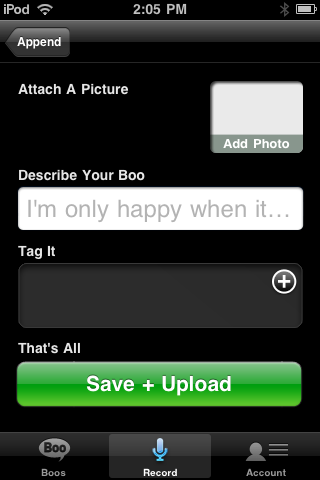
After some searching for a good app I stumbled across Audioboo. This a free app that let's you record an audio file they call a 'boo.' Then you can publish it to their website audioboo.fm.


To use it as a Language/audio Lab:
  • Go to Audioboo.fm
  • Create a free account
  • Download the app onto each iPod
  • Enter audioboo.fm account credentials to link to your account
  • Record the boo
  • Publish the boo
  • Play all your boos from the website, embed them in a blog, etc

Integration ideas:
  • Giving an interview
  • Ordering at a restaurant,drive through, etc
  • Introducing someone
  • Describing person, place, or thing
  • Telling a story,
  • "Interrogation Scene" using the past tense.
  • Giving directions (over the phone)
  • Poetry reading
Have other ideas...Share them as a comment below.

Tuesday, March 2, 2010

byki flashcards for language learners

Yesterday, I had one of my co-workers ask me if I had seen byki? I hadn't heard of it before, but I was glad she introduced it to me. I really think it is very useful.

Byki is a flashcard program for learning languages. Here are some of the features that I love:
  • 3 step flashcards:
    • Step 1 - see (target language) & English, listen to the vocab in TL
    • Step 2 - see/hear TL; provide English
    • Step 3 - see English; provide TL; listen to TL
  • There are a dozen or so lists/lessons preloaded
  • You can upload your own vocabulary lists (see byki help menu for instructions)
  • Toggle sound for slow playback.
  • Progress tracking.
  • Vocabulary list sharing.
Below is a quick video preview of what it looks like and how it works.


Tuesday, February 2, 2010

My questions for Apple...

Last week Apple announce the release of their newest creation, the iPad.


I actually sat and watched/listened to the entire announcement live thanks to Leo Laporte and his TWIT network. Being caught up in the moment, my mind raced through all the possibilities for education. Now that the adrenaline and hype have worn off, I have a few questions for apple:

#1 - Will iBooks be available on ipod touch?

#2 - Will there be a 3g or 4g versions of ipod touch coming out? (I know it is called an iPhone, but an ipod touch with wireless network always on would be quite valuable for me, plus the data plan would be a heck of a lot cheaper than an iphone)

#3 - When will the iPad be updated with a camera and multi-tasking?

Don't get me wrong, I love my apple devices and I want this one. But this will be a device that I will have to wait for the 2nd Generation model to see if it includes everything I want.